Complete setup guide for the AutoDRIVE RoboRacer simulation environment. F1Tenth sim racing
Overview
The AutoDRIVE ecosystem consists of two main components:
- Simulator: Unity-based racing simulator
- Devkit: ROS 2 API for autonomous driving algorithm development
Prerequisites
- Supported Python Versions: 3.8, 3.9, 3.10
- ROS 2 workspace setup
- Ubuntu/Linux environment recommended
Installation
Step 1: Download Components
Visit the ROBORACER ICRA 2025 webpage and download:
- AutoDRIVE Simulator
- AutoDRIVE Devkit
Note: Local installation recommended if Docker setup encounters issues
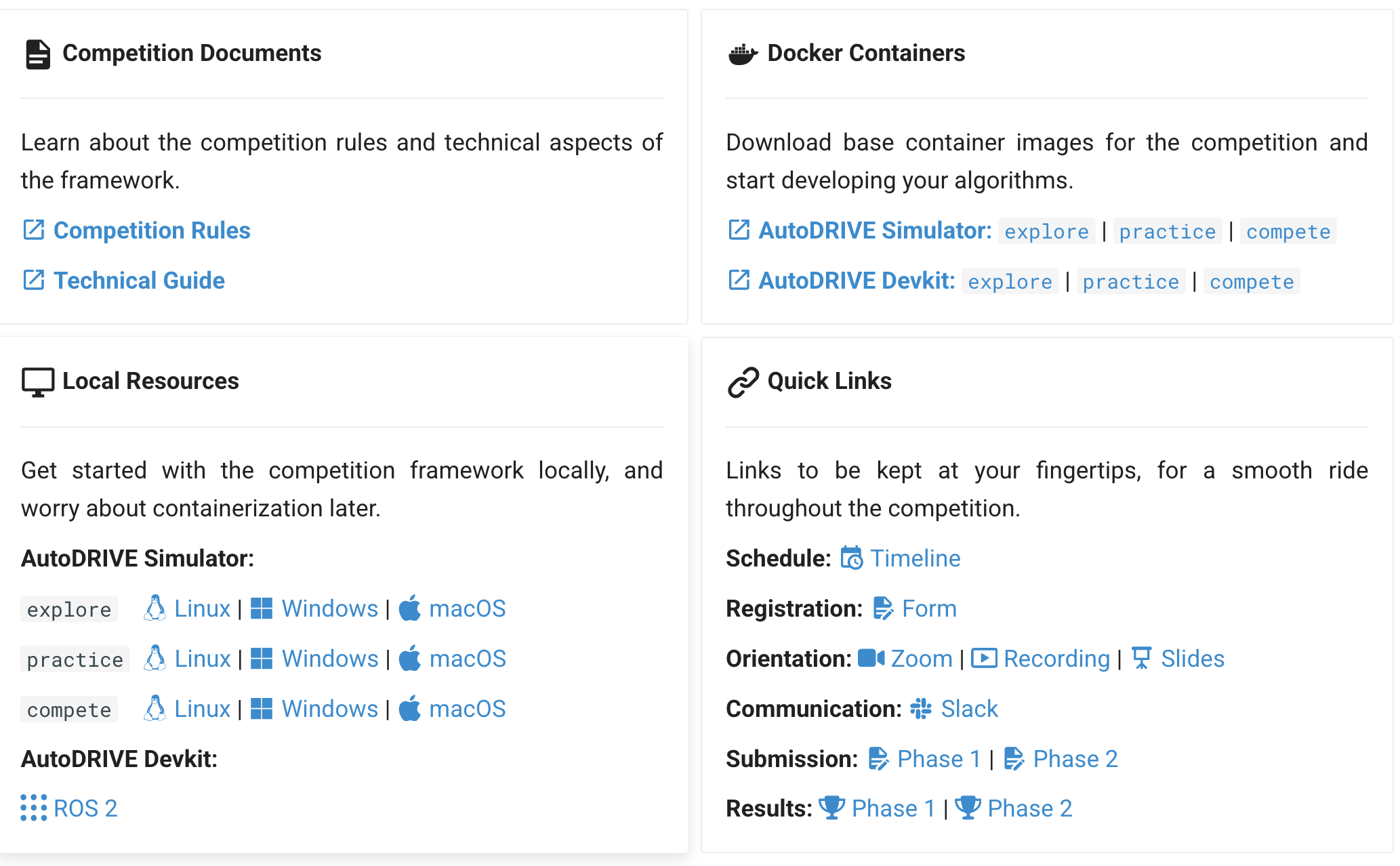
Step 2: Setup Simulator
-
Extract and prepare simulator files:
# Navigate to simulator directory cd ~/Programming/autodrive_ws/sim_autodrive # Make executable sudo chmod +x AutoDRIVE\ Simulator.x86_64 -
Expected directory structure:
sim_autodrive/
├── AutoDRIVE Simulator.x86_64
├── Data/
├── GameAssembly.so
├── UnityPlayer.so
└── nohup.out
Step 3: Setup Devkit
-
Place devkit in ROS 2 workspace:
# Copy autodrive_devkit to your ROS 2 source directory cp -r autodrive_devkit ~/ros2_ws/src/ cd ~/ros2_ws/src/autodrive_devkit # Make Python scripts executable sudo chmod +x *.py -
Install dependencies:
# Check your Python version python3 --version # Install appropriate requirements pip3 install -r requirements_python_3.8.txt # For Python 3.8 pip3 install -r requirements_python_3.9.txt # For Python 3.9 pip3 install -r requirements_python_3.10.txt # For Python 3.10 # Additional requirements # Fix setuptools compatibility pip3 install 'setuptools<66.0.0' # Install Python dependencies pip3 install transforms3d attrdict # Install ROS2 dependencies sudo apt update sudo apt install ros-humble-cv-bridge sudo apt install ros-humble-tf-transformations sudo apt install ros-humble-rviz-imu-plugin -
Build ROS 2 workspace:
cd ~/ros2_ws
colcon build
source install/setup.bash
Usage
1. Launch Simulator
# Navigate to simulator directory
cd ~/Programming/autodrive_ws/sim_autodrive

# Run simulator
./AutoDRIVE\ Simulator.x86_64
2. Launch Devkit
# Source ROS 2 workspace
source ~/ros2_ws/install/setup.bash

# Launch with graphics (recommended for visualization)
ros2 launch autodrive_roboracer bringup_graphics.launch.py

# Alternative: Launch headless mode
ros2 launch autodrive_roboracer bringup_headless.launch.py
3. Connect Components
- Start the simulator (Step 1)
- Launch devkit (Step 2)
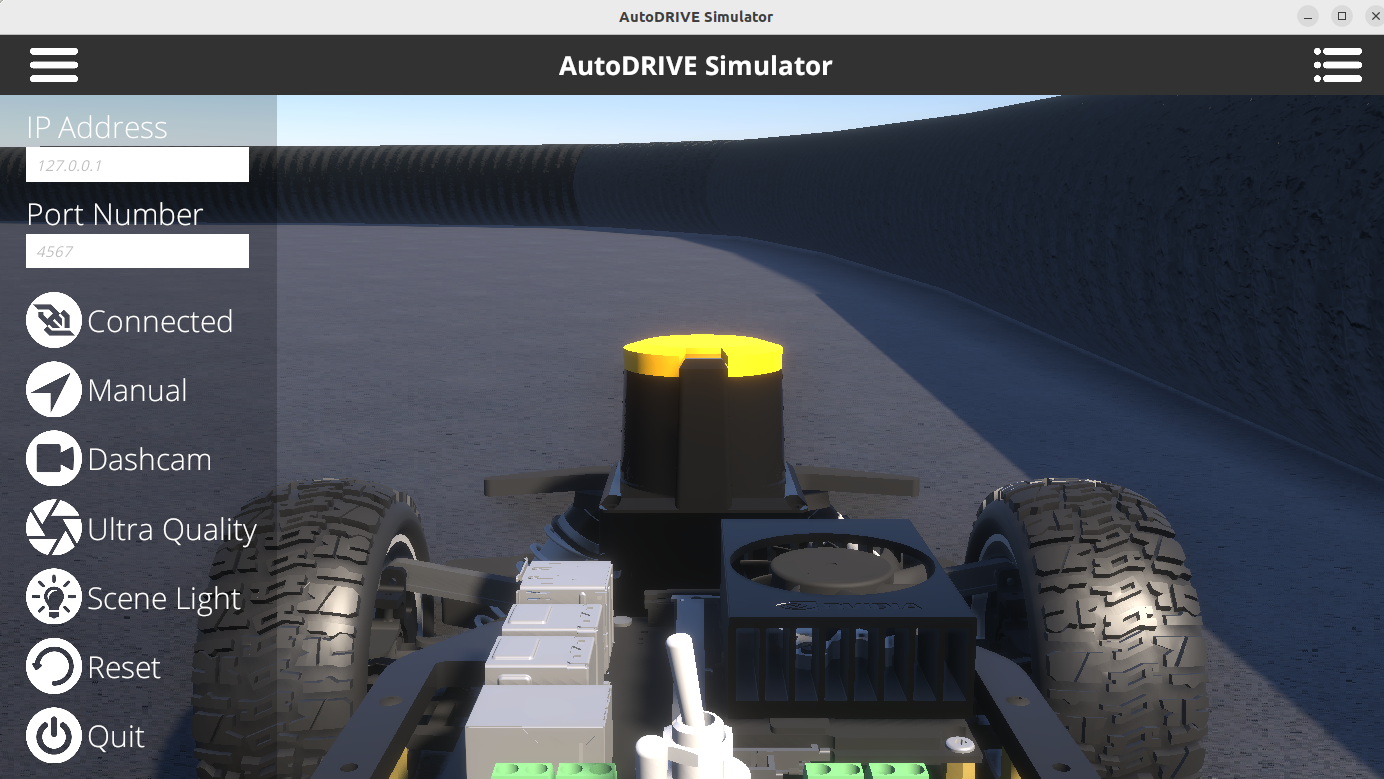
- Click “Connect” button in the simulator interface
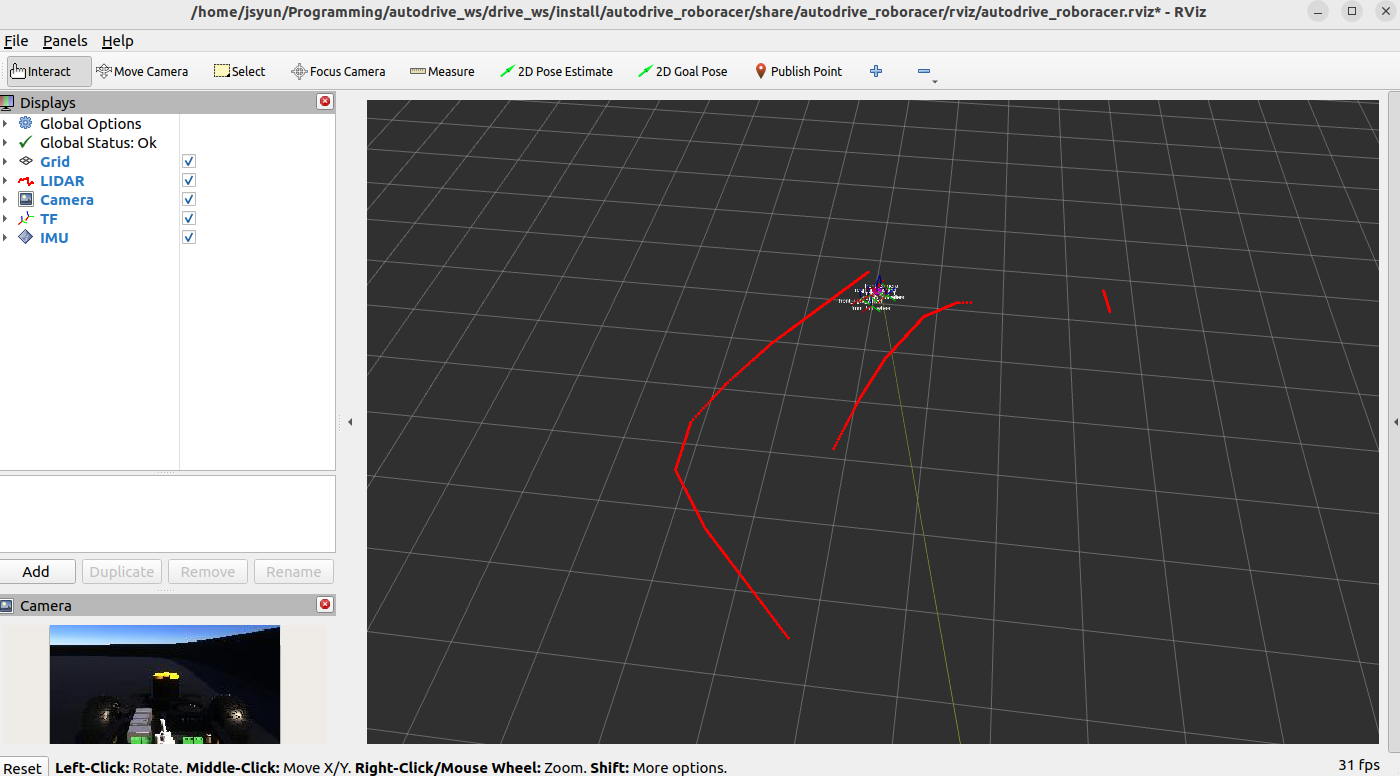
- RViz visualization should appear showing the racing environment
4. Vehicle Control
# Manual keyboard control
ros2 run autodrive_roboracer teleop_keyboard
Architecture
┌─────────────────┐    WebSocket     ┌─────────────────┐
│   AutoDRIVE     │◄────────────────►│   AutoDRIVE     │
│   Simulator     │    Bridge        │   Devkit        │
│   (Unity)       │                  │   (ROS 2)       │
└─────────────────┘                  └─────────────────┘
                                             │
                                             ▼
                                     ┌─────────────────┐
                                     │   Algorithm     │
                                     │  Development    │
                                     │ (Python/C++)    │
                                     └─────────────────┘
Troubleshooting
- Docker issues: Use local installation as described above
- Connection problems: Ensure both simulator and devkit are running before connecting
- Python version conflicts: Use virtual environments and match exact dependency versions
- Permission errors: Ensure executable permissions are set correctly
Competition Resources
- Official webpage: ROBORACER ICRA 2025
- Documentation: Check README files in downloaded packages
- Support: Refer to official AutoDRIVE ecosystem documentation
Next Steps
- Verify setup by launching both components and establishing connection
- Test teleoperation to ensure vehicle control works
- Explore RViz visualization for sensor data and environment mapping
- Begin algorithm development using the ROS 2 API
Simulator looks like
rviz diplay after connected
Reference
check IP Address
hostname -I
Clone repository (if needed):
git clone https://github.com/AutoDRIVE-Ecosystem/AutoDRIVE-RoboRacer-Sim-Racing.gitKey Dependencies
WebSocket Communication (Version Critical)
| Package | Version |
|---|---|
| eventlet | 0.33.3 |
| Flask | 1.1.1 |
| Flask-SocketIO | 4.1.0 |
| python-socketio | 4.2.0 |
| python-engineio | 3.13.0 |
Data Processing Libraries
| Package | Minimum Version |
|---|---|
| numpy | 1.13.3 |
| opencv-contrib-python | 4.5.1.48 |
| pillow | 5.1.0 |